Tutorial
Set up Carry to save ChatGPT, Claude, Gemini and Grok chats
Set up Carry in two minutes: choose a folder, connect ChatGPT, Claude, Gemini or Grok, pin it, and every chat saves as Markdown in a folder you own.
Choose a folder
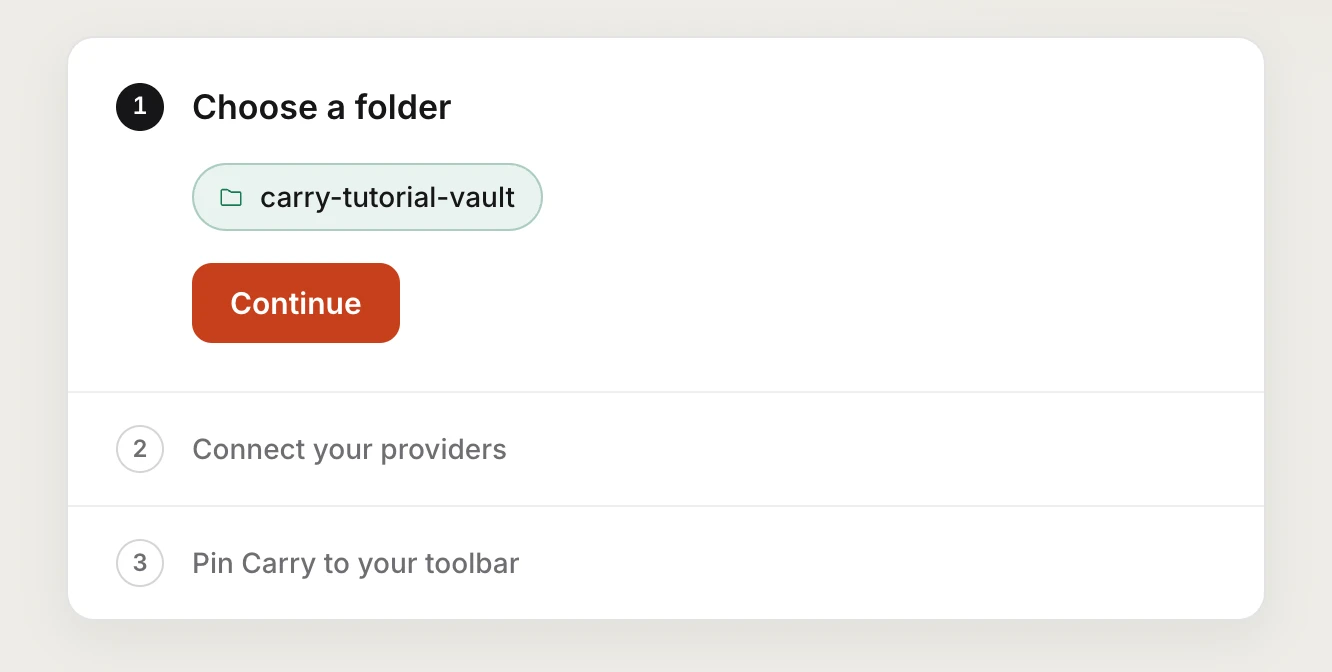
Carry opens its setup page after you install it. Click Choose folder and pick any folder, or your Obsidian vault. Carry saves into a
carry-backupfolder inside it.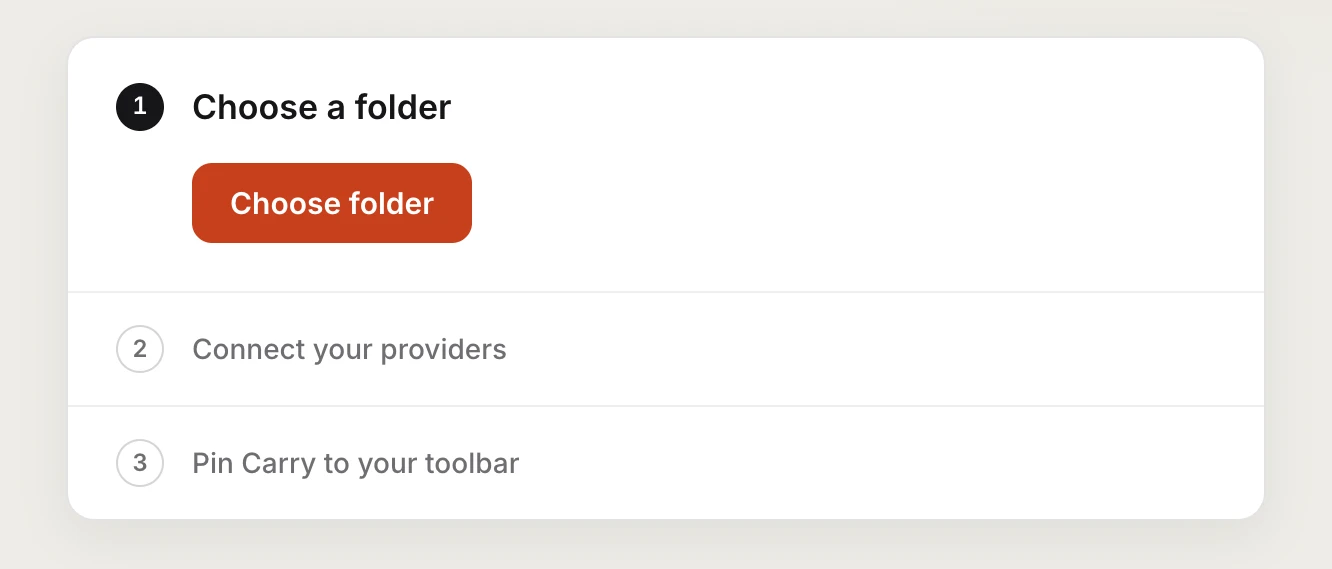
Continue
Your folder shows as a chip. Click Continue.
Connect your AI apps
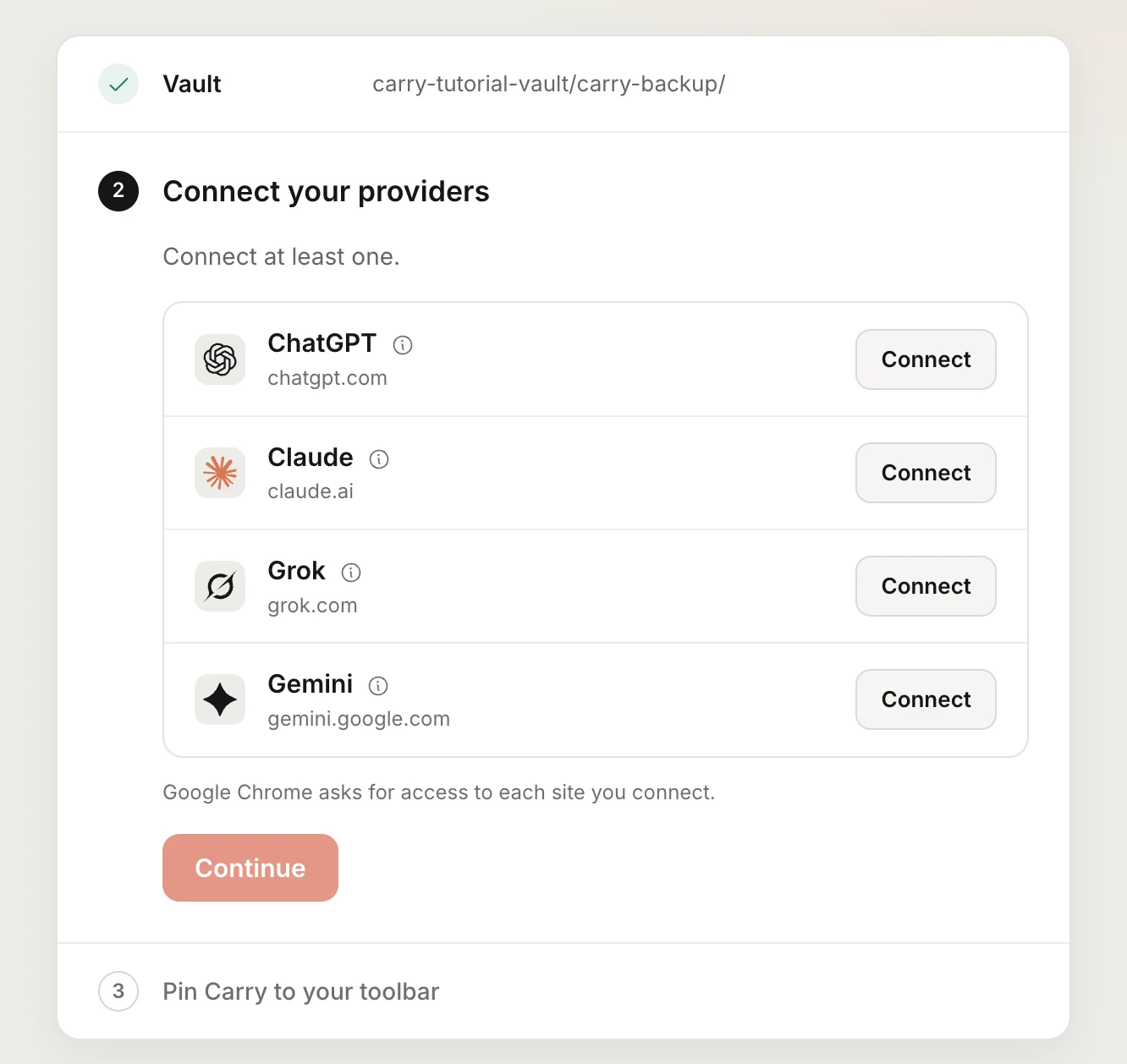
Click Connect next to each app you use. Connect at least one.
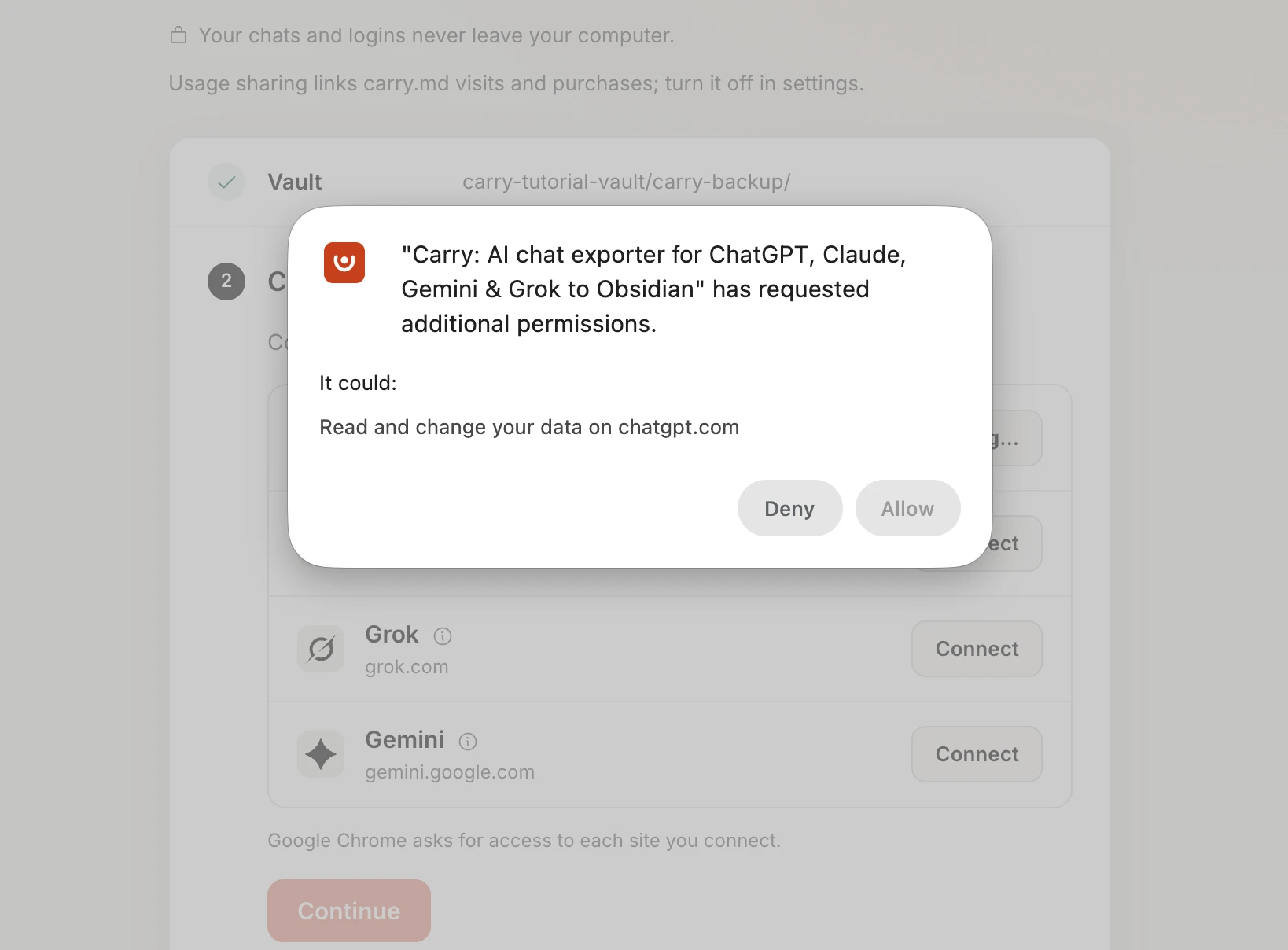
Allow access
Chrome asks once for each site. Click Allow.
Continue
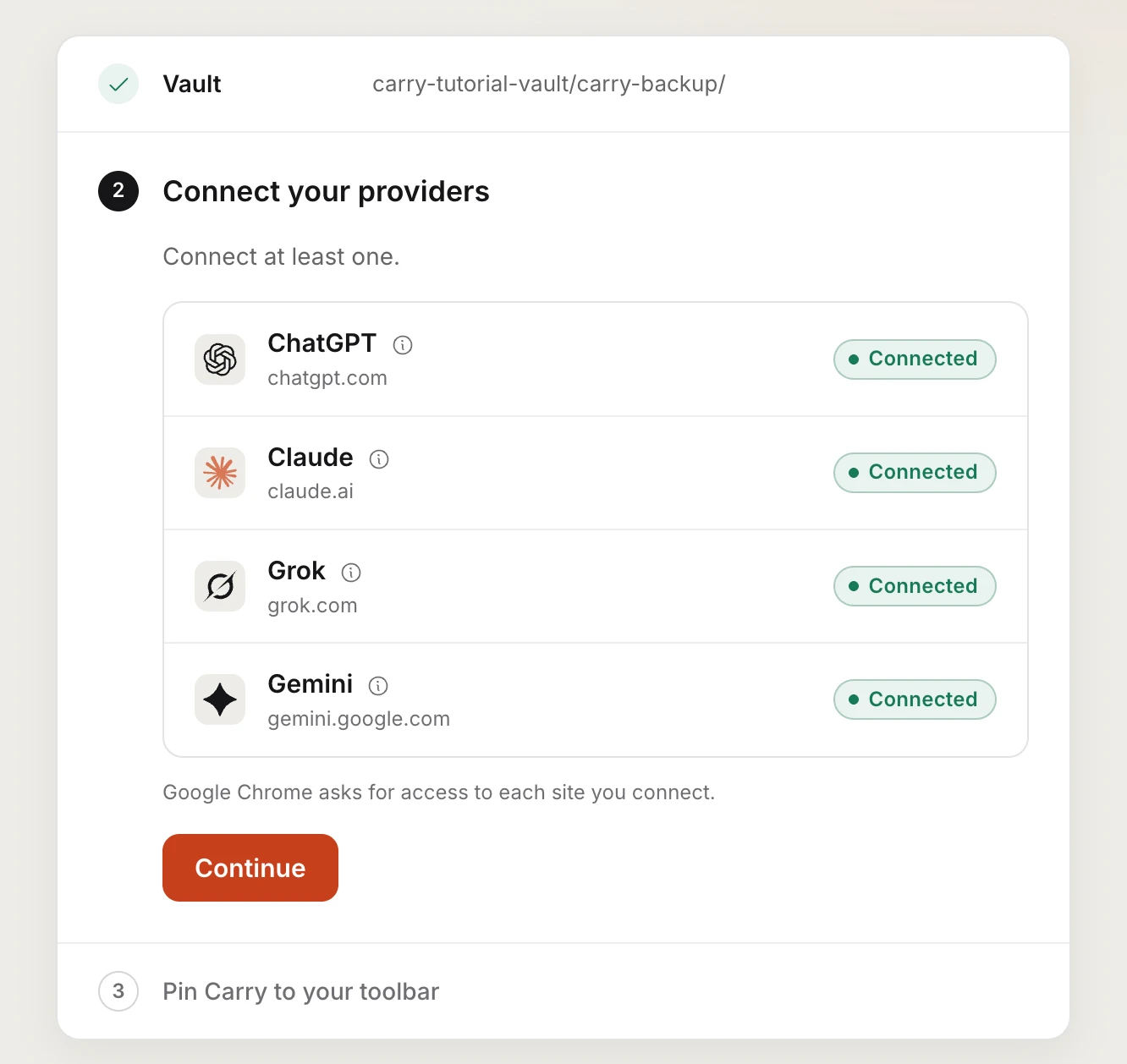
Each app reads Connected. Click Continue.
Pin Carry
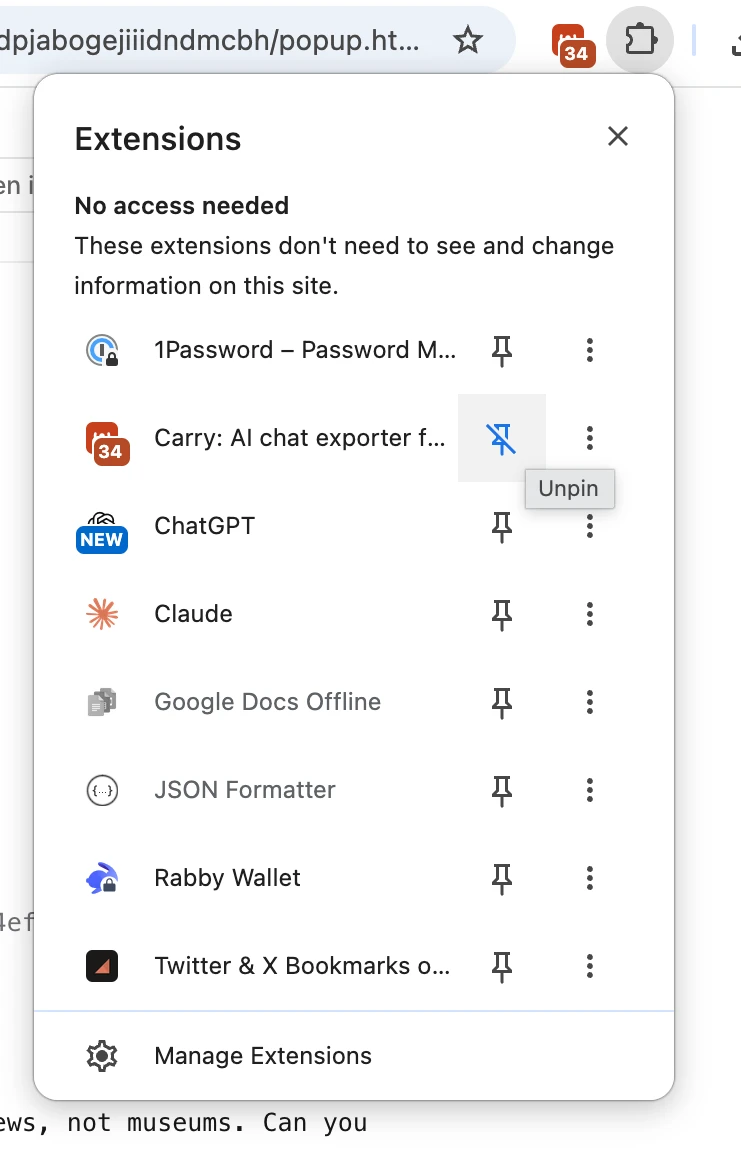
Open the puzzle-piece menu in Chrome and click the pin next to Carry.
Finish setup
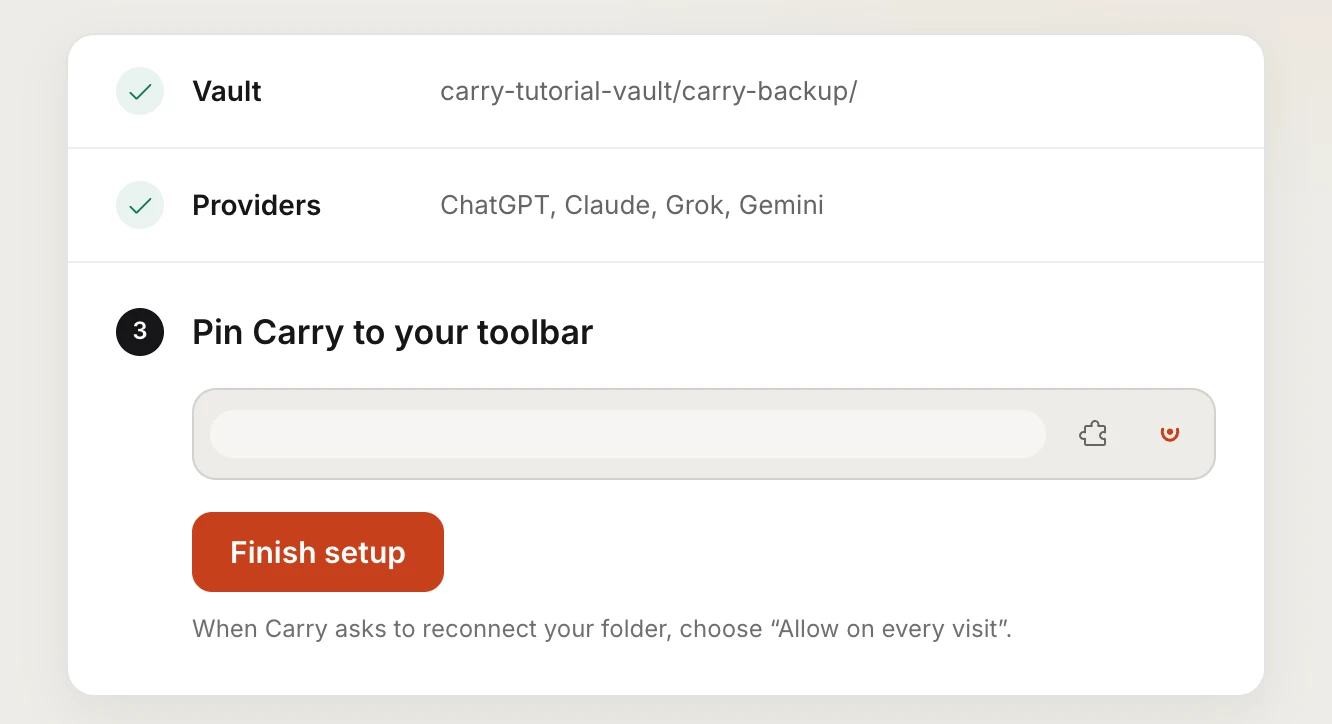
Click Finish setup. Carry starts saving your chats. If Chrome later asks to reconnect your folder, choose Allow on every visit.
Done
Carry is in your toolbar
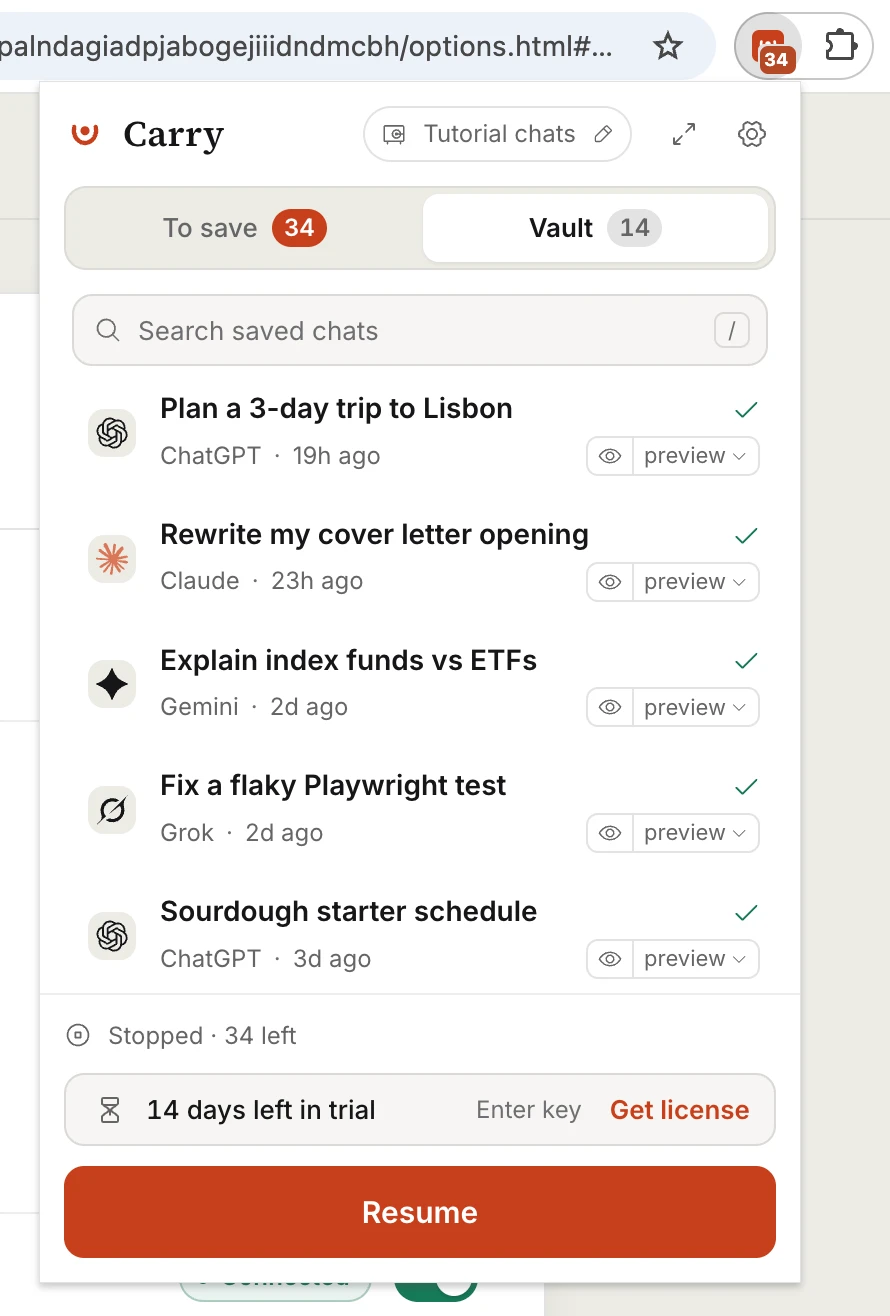
Click the Carry icon any time. To save lists chats still to save; Vault lists what is saved.